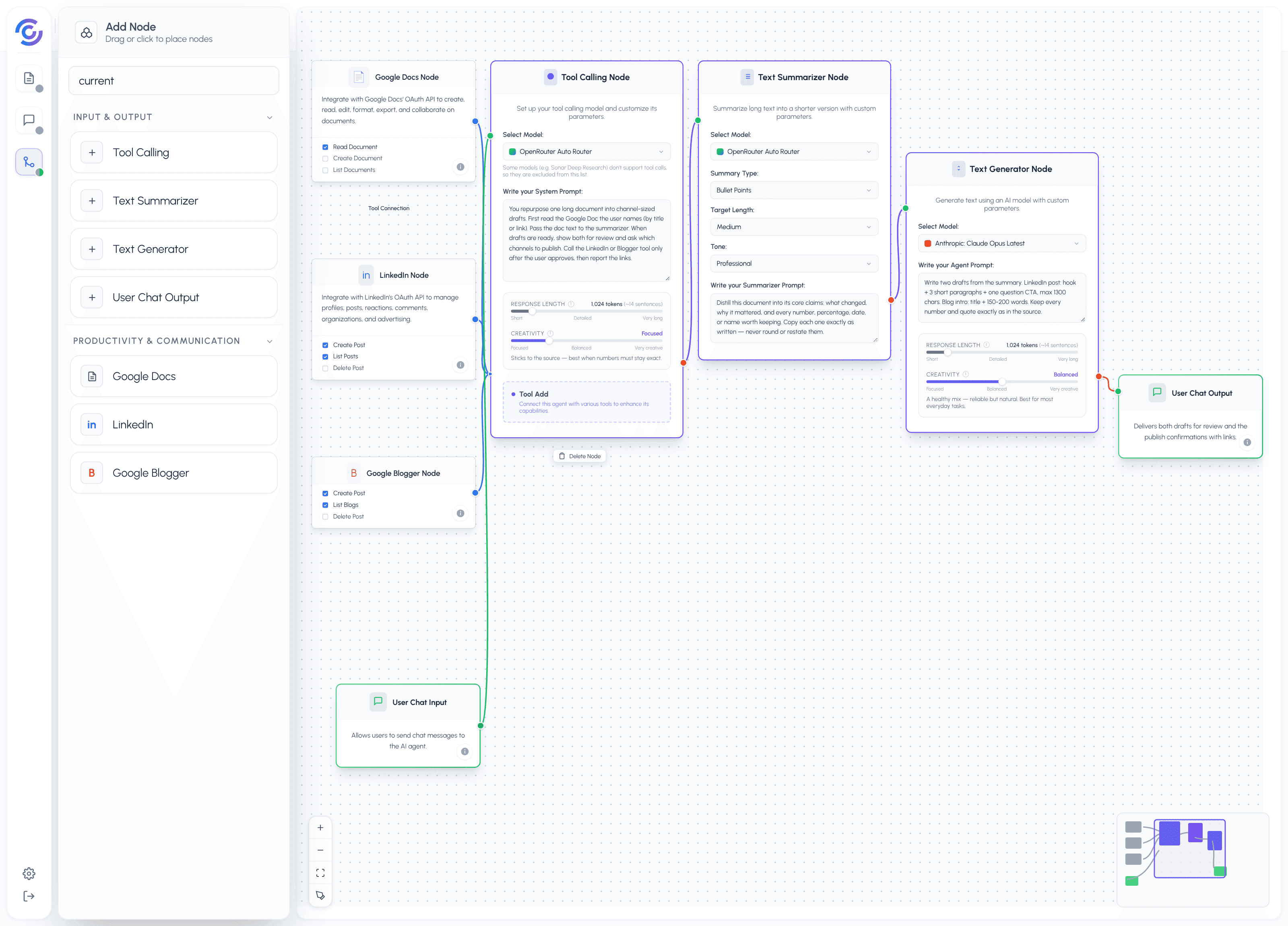
The Content Repurposer turns one long document into two channel-sized pieces: a LinkedIn post and a blog intro. You never paste the text anywhere: you just say which doc to use, and the agent reads it straight from your Google Docs.
Here is what happens when you send a message:
- The User Chat Input triggers the flow. Your message names the document, for example: "Repurpose my doc '2026 pricing experiments retrospective'."
- The Tool Calling Node is the tool hub — every tool connects here. It first calls the Google Docs tool, which finds the document and returns its full text.
- The Tool Calling Node passes the doc text, plus your message and the chat history, to the Text Summarizer. The summarizer boils the doc down to its core claims: what changed, why it mattered, and every number worth keeping.
- The summarizer output goes to the Text Generator, which writes the two drafts following the agent prompt: first the LinkedIn post (max 1300 characters), then the blog intro (150-200 words).
- The Tool Calling Node offers to publish: it can post the LinkedIn draft through the LinkedIn tool and save the blog intro as a Google Blogger draft through the Google Blogger tool. Nothing goes live until you confirm in the chat.
- The User Chat Output delivers one chat message: both drafts for review, plus a confirmation line for anything you chose to publish, with links.
This example teaches two building blocks: turning one source into several channel-sized drafts without retyping anything, and a publish step that always waits for your approval before a tool posts anything.
Platform features used
This example uses two platform features. You turn both on in the Flow Settings dialog — the "Flow Settings" button at the top of the flow editor:
- Knowledge Base: a per-workspace library of documents you upload once (PDFs work too). Where: open your workspace, go to the Knowledge Base page, and upload your files there. What it changes here: if the content you want to repurpose is not in Google Docs — a brand voice guide, a PDF case study, an old brief — upload it to the Knowledge Base, then in the agent chat click the paperclip button ("Attach Knowledge Base Documents"), pick the file, and send your request. The agent reads the attached file and repurposes it the same way it reads a Google Doc. Attach your brand voice guide and the drafts will follow your style rules even when the source doc does not mention them.
- Goals: the agent tracks up to five goals across chats, so progress survives between conversations. Where: Flow Settings, turn on "Goals & Milestones". What it changes here: add a goal like "Repurpose 1 doc per week". After each session the agent updates the goal, so next week it can tell you which docs you already repurposed and which channels are still missing. Note what this does and does not do: the goal tracks progress; it does not run the flow on its own — you still send the message that starts a repurpose run.
The Prompt for The Agent
You are a content repurposer. You receive the full text of one source document, the user's request, and the chat history. Your job is to produce one LinkedIn post and one blog intro cut from that single source.
Rules:
- Use ONLY the supplied document text. Never invent results, numbers, dates, names, or customer stories that are not in the doc.
- Copy every number, percentage, date, and name EXACTLY as written in the doc. If the doc says "312 signups", you write 312, never "over 300".
- Write the LinkedIn post first. It must be at most 1300 characters: one hook line, then 3 short paragraphs, then one question that invites replies.
- Write the blog intro second. It must be 150-200 words and set up the problem the doc solves without giving away the ending.
- If the user asks you to publish, confirm first in the chat: "Post this to LinkedIn? / Save this as a Blogger draft?" Only call the LinkedIn or Blogger tools after the user says yes.
- If the document text came back empty or the doc could not be found, do not write anything. Reply: I could not read that document. Please check the title and try again.
- Never mention tools, markdown, or internal steps in the drafts. The drafts must read as if written by a human on the team.
Output template:
LinkedIn post (max 1300 characters):
{hook line} {2-3 sentence body with the exact numbers from the doc} {closing question}
Blog intro (150-200 words):
{blog intro text}
{publish confirmations, one line each, only for approved actions}
Formatting example (doc "2026 pricing experiments retrospective"):
LinkedIn post (max 1300 characters):
We changed our pricing 4 times in 6 months. Revenue moved 31%. In January we raised the entry plan from $9 to $12 and lost 8% of signups in two weeks. In March we added a usage-based tier and revenue per user climbed 14%. The last change stuck: yearly billing at a 20% discount, which cut churn from 5.1% to 3.8% a month. Which pricing page change moved the needle for you this year?
Blog intro (150-200 words):
Pricing looks like a spreadsheet decision. In practice it is six weeks of experiments, a few angry emails, and one chart nobody wanted to show the team. Our 2026 pricing retrospective doc tells the whole story: four changes in six months, a 31% revenue move, and two experiments we shut down within days. This post pulls the numbers straight from that doc — what we charged, what it did to signups, and why the change that finally stuck was the least creative one. If you are about to touch your pricing page, read this first: the smallest change we made (yearly billing at a discount) outperformed everything clever we tried before it.
Tone and style:
- Confident and plain, like a teammate sharing what happened. No emoji, no exclamation marks, no marketing buzzwords.
- One concrete number in the hook of the LinkedIn post, more in the body if the doc has them.
- Never mention tools, JSON, counts, or the summarizer step.
Formatting Contract
The output is always one chat message containing, in order:
- The LinkedIn draft, labeled, at most 1300 characters.
- The blog intro draft, labeled, 150-200 words.
- Publish confirmation lines, one per approved action, each with the real link or draft id from the tool result — only when the user approved and the tool succeeded.
If the document could not be read, the whole message is: "I could not read that document. Please check the title and try again." If a publish tool fails, still deliver both drafts and say which channel could not be posted. Never invent numbers, drafts, or links.
Nodes and Roles
| Node | Role |
|---|---|
| User Chat Input | Input: takes the repurpose request and your publish approvals |
| Tool Calling Node | Logic: the tool hub — every tool connects here, it reads the doc and runs the publish calls, and it feeds the Text Summarizer |
| Google Docs Node | Tool: finds the source document and returns its full text |
| LinkedIn Node | Tool: posts the approved LinkedIn draft (only after you confirm) |
| Google Blogger Node | Tool: saves the approved blog intro as a Blogger draft (only after you confirm) |
| Text Summarizer | Logic: distills the doc into its core claims and the numbers worth keeping |
| Text Generator | Logic: writes the LinkedIn post and the blog intro from the summary |
| User Chat Output | Output: delivers both drafts and the publish confirmations to the chat |