2026-11-2016 min read
C
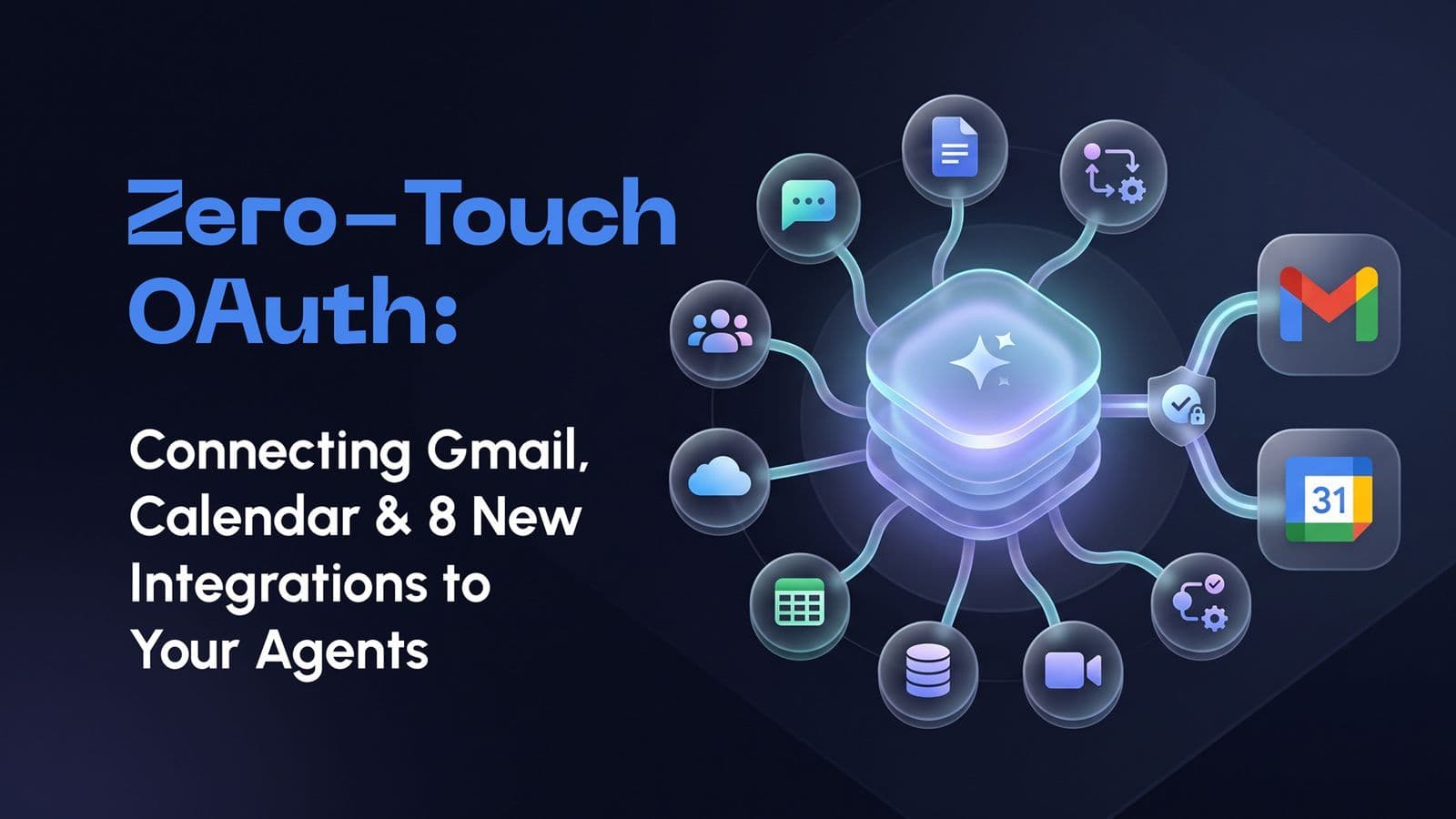
Caywork PlatformZero-Touch OAuth: Connecting Gmail, Calendar and 260+ Apps to Your Agents
An agent that can read your inbox, check your calendar, and update a spreadsheet can finish real work, while an agent that cannot connect to anything stays a clever chat window.
C
Caywork Platform
Author at Caywork
An AI agent is only as useful as the apps it can reach. An agent that can read your inbox, check your calendar, and update a spreadsheet can finish real work, while an agent that cannot connect to anything stays a clever chat window. The idea has never been the hard part; the setup has. Developer consoles, consent screens, permission scopes, and tokens that quietly expire have kept many teams from connecting agents to the tools they use every day. This guide explains how OAuth keeps those connections safe, what "zero-touch" OAuth changes, and how Gmail, Google Calendar, and Google Sheets agents work in practice.
Why AI Agents Need Access to Your Apps
Most of the work an agent can take off your plate lives inside other apps. Email, calendars and spreadsheets hold the requests, schedules and numbers that shape a typical working day. Without access to them, an agent can only give advice. With access, it can act on your behalf within the limits you set.
What an Agent Can Do Once It Is Connected
The volume of routine communication shows what is at stake. The Microsoft Work Trend Index finds that the average worker receives 117 emails a day, most of them skimmed in under 60 seconds. A connected agent can sort that flow before you see it and turn requests into concrete actions.
Once an agent has access to your apps, it can:
- Read and label incoming email, then draft replies for your review.
- Check your availability and propose or create meeting times.
- Log leads, orders or form answers in a shared spreadsheet.
- Prepare a daily brief that combines your inbox and your calendar.
The Setup Problem: API Keys, Cloud Consoles and Expiring Tokens
Connecting an agent to Google apps the manual way is a small engineering project. You create a project in a developer console, configure a consent screen, register client credentials, choose scopes and write code to store and refresh tokens. Each step is documented, but together they put agent integrations out of reach for most non-technical teams.
Google for Developers describes the flow: an app obtains client credentials, requests an access token for specific scopes and refreshes it when it expires. Tokens also need care after setup. Google notes that a refresh token can stop working when it goes unused for six months, or when the user changes their password and the token includes Gmail scopes. For apps whose consent screen is still in "Testing" status, refresh tokens expire after seven days.
Email adds one more layer. The Gmail API documentation classifies scopes such as gmail.readonly and gmail.modify as restricted, which means the app must pass Google's restricted-scope verification. If the app stores or transmits that data on its servers, it must also pass a security assessment. That is a lot of work for a team that only wants one inbox agent.
How OAuth Works for AI Agent Integrations
OAuth is the open standard that lets you give an app access to your account without handing over your password. It sits behind the familiar "Sign in with Google" screens, and it is now the default way AI agents reach business apps. Three ideas are enough to judge any integration: tokens, scopes and revocation.
OAuth in Plain Language
Think of OAuth as a valet key. It lets someone drive your car without giving them the key to your house. The IETF standard for OAuth 2.0 describes it as a way for a third-party application to obtain limited access to a web service on the user's behalf.
The standard also explains the problem it solved. Before OAuth, apps had to store users' passwords, received far more access than they needed, and the only way to cut off one app was to change your password. With OAuth, you sign in on Google's own page, approve a specific request, and the app receives a token instead of your password.
The same pattern now underpins agent connections more broadly. The authorization specification of the Model Context Protocol, the open standard many agents use to reach tools, builds on OAuth 2.1. It requires clients to use PKCE, a protection against intercepted authorization codes, and to request tokens bound to one specific server.
Scopes and Permissions: What You Actually Grant
Scopes define what a token is allowed to do. Google for Developers notes that access tokens only work for the operations and resources named in their scope, and a token issued for one API does not grant access to another. Scopes are where you decide how much an agent can touch.
Gmail shows how fine-grained this can be. The Gmail API documentation lists gmail.labels as non-sensitive, gmail.send as sensitive, and gmail.readonly and full mailbox access as restricted. Google advises choosing the most narrowly focused scope possible. For agents, the practical rule follows: an agent that only drafts replies should not hold permission to delete mail.
Token Refresh and Revoking Access
Access tokens are short-lived by design, while refresh tokens let an app get new access tokens without asking you to sign in again. Together they keep an agent working in the background. They also give you a clean way to end access at any time.
Revocation is the safety valve. Google for Developers lists user revocation as one of the events that ends a refresh token. You can remove one app's access from your Google account without changing your password and without affecting any other connected app.
What Zero-Touch OAuth Means
Zero-touch OAuth is an approach in which the agent platform, not the user, carries the setup work. The platform registers and maintains the OAuth client, completes app verification, stores tokens securely and refreshes them in the background. Your only job is to click connect, review the permissions on Google's own screen and approve.
Manual OAuth Setup vs Zero-Touch Connection
The difference is easiest to see step by step. The table below compares what you handle yourself in a manual setup with what a zero-touch platform handles for you. The security model is the same OAuth flow in both cases; what changes is who does the work.
| Step | Manual OAuth setup | Zero-touch connection |
|---|---|---|
| Developer project and client credentials | You create and manage them | The platform manages them |
| Consent screen and app verification | You configure it and go through Google's review | The platform handles it |
| Choosing scopes | You decide and code them | Set per integration; you review them on the consent screen |
| Token storage | You build secure storage | The platform stores tokens in a protected vault |
| Token refresh and expiry | You write and monitor refresh logic | Handled in the background |
| What you do to connect | Configure, code, test and maintain | Click connect and approve |
Security Questions to Ask Before You Connect an Account
Zero-touch should never mean zero scrutiny. Convenience moves the setup work to the platform, so the platform's security practices matter more, not less. Before you connect a mailbox or a calendar, ask these questions:
- Which scopes does each integration request, and are they the narrowest that fit the task?
- Where are tokens and keys stored, and are they encrypted?
- Can I see every connected account and disconnect it in one place?
- Which actions need my approval before the agent acts?
- Is there a record of what the agent did with each connection?
These questions map to real risks. The OWASP GenAI Security Project lists tool misuse (ASI02) and identity and privilege abuse (ASI03) in its Top 10 for Agentic Applications, describing agents that bend legitimate tools to harmful ends and leaked credentials that let agents operate beyond their intended scope. Gartner finds that only 13% of organizations believe they have the right AI agent governance in place, and recommends defining a clear model for agent identity, permissions and lifecycle. Our guide to enterprise AI governance for agent deployment covers these controls in more depth.
How to Connect Gmail to an AI Agent
On most agent platforms, connecting Gmail follows the same short path. You choose the Gmail integration, sign in on Google's page, review the requested permissions and approve. What matters after that is what you ask the agent to do, and where you keep a person in charge.
- Open the integrations or connections area of your agent platform.
- Select Gmail and click connect.
- Sign in on Google's page and read the permissions it lists.
- Approve, then test the agent on a low-risk task such as labeling or drafting.
Gmail AI Agent Use Cases: Triage, Drafts and Follow-Ups
A Gmail AI agent earns its keep on the repetitive parts of email. It works best on high-volume, predictable messages where the rules are clear but the wording varies. These four use cases are good places to start:
- Inbox triage: label, prioritize and summarize new mail so the important messages surface first.
- Draft replies: prepare answers to routine questions in your tone and save them as drafts.
- Follow-ups: spot threads still waiting on a reply and draft a polite nudge.
- Extraction: pull orders, invoices or leads out of email and into a spreadsheet or CRM.
Keeping a Human in the Loop on Outgoing Email
Sending email on your behalf is the highest-risk Gmail action, because a mistake reaches a customer instantly and cannot be unsent. The safest pattern is simple: the agent drafts and a person sends, at least until the agent has a proven track record. You can then automate low-risk replies one category at a time.
This approach is the core of human-in-the-loop design. It also matches the narrow-scope advice in the Gmail API documentation: an agent that only prepares drafts does not need permission to send or delete mail.
How a Google Calendar AI Agent Works
A Google Calendar AI agent works with the same building blocks you use in the calendar app: events, attendees and calendars. The Google Calendar API documentation notes that the API exposes most of the features available in the web interface. That includes creating and managing single or recurring events with titles, times and attendees, and controlling who can access a calendar.
Scheduling, Meeting Prep and Reminders
Calendar work is full of small, repeatable decisions that an agent can take over. Finding a slot, adding the right people and preparing for the meeting all follow patterns. These are the most common Google Calendar AI agent tasks:
- Scheduling: find a free slot and create the event with the right attendees.
- Meeting prep: before each meeting, pull the related email threads and write a short brief.
- Recurring rhythms: set up weekly reviews, check-ins or reminders as recurring events.
- Calendar hygiene: flag double bookings and meetings that have no agenda.
Combining Gmail and Calendar in One Workflow
The biggest gains come when one agent works across both apps. A meeting request arrives by email, the agent checks your calendar, proposes two open slots in a draft reply and, once the time is confirmed, creates the event with the right attendees. After the meeting, it drafts the follow-up email.
Connected workflows also make agents more independent. In a Zapier survey of 513 enterprise leaders, 77% of those whose agents are mostly part of broader automated workflows say their agents complete more than 60% of tasks without human intervention. Among organizations whose agents are less connected, that figure drops to 8%.
Using a Google Sheets AI Agent for Reports and Trackers
Spreadsheets are where many teams keep the numbers agents need and the lists agents should update. The Google Sheets API documentation lists the core capabilities: creating spreadsheets, reading and writing cell values and updating formatting. That is enough for an agent to keep a tracker current or build a report from scratch.
Lead Lists, Weekly Reports and Data Clean-Up
A Google Sheets AI agent is most useful when it connects a sheet to the work happening elsewhere. It can move information from your inbox into rows, or turn rows into a readable summary. These tasks are a natural fit:
- Lead lists: add each new inbound lead from email or a form, with its source and date.
- Weekly reports: pull figures from several tabs and write a short summary of what changed.
- Data clean-up: standardize formats, flag duplicates and highlight missing fields for review.
- Shared trackers: keep project or content calendars up to date as tasks move forward.
Connecting Gmail, Calendar and New Integrations on Caywork
Caywork is an AI agent platform with a marketplace of ready-made agents and a visual editor for building your own. With the v24 release, connecting the tools you already use moved into one place. Agents can now act in Gmail, Google Calendar and hundreds of other apps without any infrastructure on your side.
One Connection Center for 260+ Apps
The Caywork v24 release notes introduce a single connection center for more than 260 apps. You connect the tools you already use, see what is connected, filter accounts by status and disconnect any account in a click. Each connector shows its official brand icon, so it is easy to confirm you picked the right one.
The connection center builds on earlier work. The Caywork v23 release notes made the Gmail, Google Docs, Google Sheets and LinkedIn nodes configurable, so agents built on Caywork can already read and update the files and spreadsheets your team works in.
New Integrations in Caywork v24
The v24 release highlights five connected apps and adds four partner tools to the catalog. New tools appear in the agent editor's palette without an app update, so the list keeps growing between releases. The table below shows what each one is for.
| Integration | Type | What it helps an agent do |
|---|---|---|
| Gmail | Connected app | Triage email, draft replies and follow-ups |
| Google Calendar | Connected app | Schedule meetings and prepare for them |
| Connected app | Support professional networking and content workflows | |
| Google Business Profile | Connected app | Support local business listing workflows |
| Google Slides | Connected app | Support presentation workflows |
| ContactOut | Partner tool | Look up people and companies, verify emails and phone numbers |
| Supadata | Partner tool | Pull YouTube transcripts and video data |
| Jetcrape | Partner tool | Scrape web pages |
| Franixo | Partner tool | Generate site visibility reports |
What Happens When an Agent Needs an App You Haven't Connected
You do not need to predict every connection before you start. According to the Caywork v24 release notes, when an agent needs an app you have not connected yet, it pauses and asks you to connect it instead of failing. You approve the connection, and the work continues from where it stopped.
How Caywork Protects Your Connected Accounts
Convenience only works if the connections are protected. Caywork stores integration keys encrypted in a secure vault, and agents run in sandboxed environments. Your inputs and API keys are never shared with the creators of marketplace agents.
For teams, workspaces add role-based access with Owner, Admin, Member and Viewer roles, so you control who can use which agents and connections. Teams with stricter requirements can read about SAML SSO, multi-workspace and audit logs on Caywork.
Put your inbox and calendar to work. Connect Gmail and Google Calendar to a ready-made Caywork agent from one connection center, with no infrastructure to set up. New accounts start with 50 free credits. See pricing.
Frequently Asked Questions About Connecting Gmail and Calendar to Caywork Agents
These are the questions teams ask most often before they connect their accounts to an AI agent. The answers cover how OAuth connections work in general and how they work on Caywork in particular. Each one draws on the sources referenced in this guide.
1. How Do I Connect Gmail to an AI Agent?
On most platforms, you open the integrations area, select Gmail, sign in on Google's page, review the permissions and approve. On Caywork, you do this from the connection center, where you can also see every connected account and disconnect it at any time.
2. Is It Safe to Give an AI Agent OAuth Access to Gmail and Calendar?
It can be, if three conditions are met: the integration requests only the scopes the task needs, tokens and keys are stored encrypted, and risky actions such as sending email need your approval. OAuth also lets you revoke one app's access without changing your password. Caywork stores integration keys encrypted in a secure vault and runs agents in sandboxed environments.
3. What Can a Google Calendar AI Agent Do?
A Google Calendar AI agent can find free slots, create single or recurring events with the right attendees, prepare meeting briefs from related emails and flag double bookings. Combined with Gmail, it can handle a meeting request from the first email to the follow-up.
4. Can an AI Agent Work With Google Sheets?
Yes. Through the Google Sheets API, an agent can create spreadsheets, read and write cell values and update formatting. On Caywork, the Google Sheets node lets agents keep lead lists, trackers and weekly reports up to date.
5. What Does Zero-Touch OAuth Mean on Caywork?
It means you connect your accounts from one connection center without building or maintaining any infrastructure. If an agent needs an app you have not connected yet, it pauses and asks you to connect it, then continues the run.
6. How Much Does It Cost to Run a Connected Agent on Caywork?
Caywork uses usage-based credits. Each run meters the model calls and tools it uses, so the cost of a run depends on the work the agent actually does. Credits are reserved before a run and settled as it progresses, runs respect your budget, and teams can pool credits at the workspace level. New accounts get 50 free credits, and credit packs start at $5 for 100 credits.
Final Thoughts
Connecting an agent to Gmail, Google Calendar and Google Sheets is what turns it from an assistant that suggests into a teammate that acts. OAuth makes those connections safe, and a zero-touch approach removes the setup work that used to stand in the way. Caywork brings both together: one connection center for more than 260 apps, encrypted keys, agents that ask before they reach for an app you have not connected, and usage-based credits that follow each run. Start with one ready-made agent, connect your inbox and calendar, keep a person in charge of what gets sent, and expand from there. To see how several agents can share the work, read our guide to multi-agent orchestration without code.
References
-
Microsoft Work Trend Index: https://www.microsoft.com/en-us/worklab/work-trend-index/breaking-down-infinite-workday
-
Google for Developers: https://developers.google.com/identity/protocols/oauth2
-
Gmail API documentation: https://developers.google.com/workspace/gmail/api/auth/scopes
-
Model Context Protocol: https://modelcontextprotocol.io/specification/2025-06-18/basic/authorization
-
OWASP GenAI Security Project: https://genai.owasp.org/2025/12/09/owasp-top-10-for-agentic-applications-the-benchmark-for-agentic-security-in-the-age-of-autonomous-ai/
-
Google Calendar API documentation: https://developers.google.com/workspace/calendar/api/guides/overview
-
Google Sheets API documentation: https://developers.google.com/workspace/sheets/api/guides/concepts
-
Caywork v24 release notes: https://caywork.com/learn/changelog/whats-new-in-caywork-v24
-
Caywork v23 release notes: https://caywork.com/learn/blog/inside-v23-workspaces-connector-library-live-web-crawling
On this page